How to activate TuneBit
Activating is two actions: copy your license code from this website, paste it into TuneBit. That is the whole job. It takes about a minute, and every click of it is pictured below.
The whole thing, in five steps
- Open TuneBit. Open TuneBit. If it is not licensed yet it opens on the Activate TuneBit window by itself.
- Get your code. Get a license code. If you have not bought yet, press "Get a license" in that window and buy on the website — TuneBit hands over your computer ID for you. If you bought already, sign in to your dashboard on the TuneBit website.
- Copy the code. Click the code on the website, or press the Copy code button beside it. It turns green to confirm the code is now on your clipboard.
- Paste it into TuneBit. Go back to TuneBit, click inside the empty License code box, and hold Ctrl and press V to paste. The box fills with a long line of letters and numbers.
- Press Activate. Press the Activate button. The window closes and TuneBit opens fully licensed. You do not need the code again.
The rest of this page is those five steps again, slowly, with pictures. Start at copying and pasting if you want the mechanics first, or jump straight to the walkthrough.
First: copying and pasting
Copying puts something invisible in your PC’s memory. Pasting takes it back out. Windows holds one thing at a time, so copy the code and paste it before you copy anything else.
To copy the code
- Press the Copy code button next to the code. That is all it does.
- Or click anywhere on the code itself — the whole grey block is a button.
- Either way the block turns green. That green is the confirmation that the code is now on your clipboard, ready to paste.
Do not try to drag across the code to select it. It runs over several lines and it is easy to miss the end, which is the single most common reason a code is refused.
To paste it in
- Click inside the empty box first. A thin blinking line appears in it. Nothing will paste until you have done this.
- Hold down the Ctrl key (bottom-left of the keyboard) and, while holding it, press V. Then let both go.
- Prefer the mouse? Right-click inside the box and choose Paste from the little menu.
The box fills with a long line starting TB1. — that is what success looks like.
If it stays empty, nothing was copied: go back and copy it again.
The window you will be looking at
The first time you open TuneBit on a PC that is not licensed, this window opens on its own. Four things on it matter. Everything later on this page points back at these.
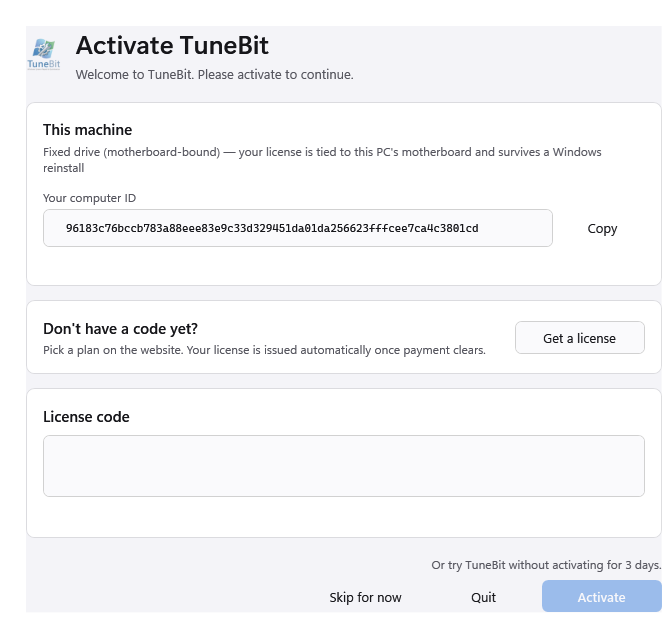
- Your computer ID, and a Copy button beside it. This identifies this particular PC. You only need it if you bought on the website before installing TuneBit.
- Get a license — opens this website in your browser to buy one. Use this if you have not paid yet: it quietly passes your computer ID across, so you never have to handle it.
- The License code box. This is where your code gets pasted.
- The Activate button. It stays greyed out until there is something in the box above it, so if it looks dead, the code has not gone in yet.
There is also a Skip for now button. That lets you use TuneBit unlicensed for three days, and it is not activating — the window comes back when the three days are up.
Route 1 — you have TuneBit open and have not bought yet
This is the short way round, and the one to use if you have a choice. Buying from inside TuneBit means the computer ID is sent over for you, your code is made for this PC automatically, and you only have to copy and paste once.
- In the Activate TuneBit window, press Get a license. Your web browser opens by itself at our pricing page. Leave TuneBit open behind it — you are coming back to it.
- Choose your plan and pay. If you do not already have a TuneBit account, one is made as you check out.
- The thank-you page that appears when payment clears already has your license code on it, made for the PC you started from. Press Copy code. The code turns green.
- Click back onto the TuneBit window, click inside the License code box, and press Ctrl and V together to paste.
- Press Activate. Done — see how to tell it worked.
Route 2 — you already bought, or you are setting up another PC
A code only works on the computer it was made for, so this time you have to tell us which computer that is. You copy one thing over to the website, and copy one thing back. Take them in order and it is four minutes of work.
Step 1 — copy this PC’s computer ID out of TuneBit
- Find Your computer ID near the top of the window. It is a long line of letters and numbers, and you can ignore what it says.
- Press Copy to the right of it. The word Copied. appears underneath. Now leave TuneBit open and go to your web browser.
Already got past the activation window — TuneBit is open and running? The same box is in Settings → License.
Step 2 — paste it into your dashboard
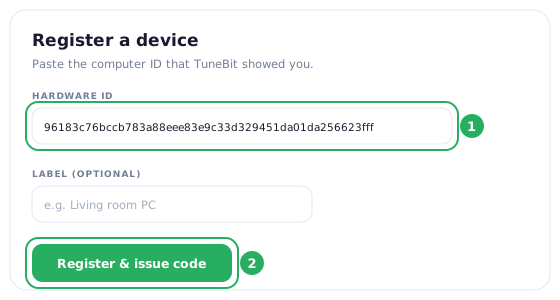
- In your web browser, open your dashboard on this website and sign in with the email address you bought with.
- Find the box headed Register a device. Click inside the Hardware ID field, then press Ctrl and V to paste. It fills with the long line you copied out of TuneBit.
- Give it a Label if you like — “Living room PC”, anything that reminds you which machine this is. You can skip this.
- Press Register & issue code.
Step 3 — copy the license code you are given
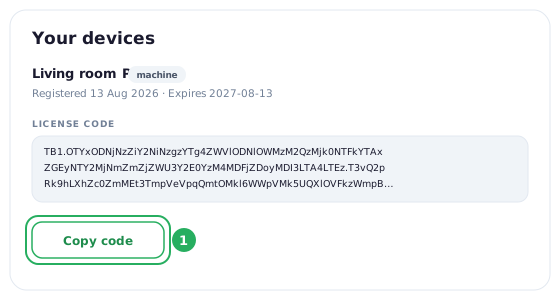
- Your new code appears immediately, further down the same page under Your devices.
It is the grey block of letters and numbers starting
TB1. - Press Copy code. The block turns green. Do not try to select it by dragging.
Step 4 — paste the code into TuneBit and activate
- Click back onto the TuneBit window. If you cannot see it, its icon is still on the taskbar along the bottom of the screen — click that.
- Click inside the empty License code box so the blinking line appears, then hold Ctrl and press V. The box fills up.
- Press Activate. It is no longer greyed out now that there is a code in the box.
Finding the licence screen once TuneBit is open
If you pressed Skip for now, or you are renewing, the activation window will not be in front of you. Everything from it lives in Settings instead.
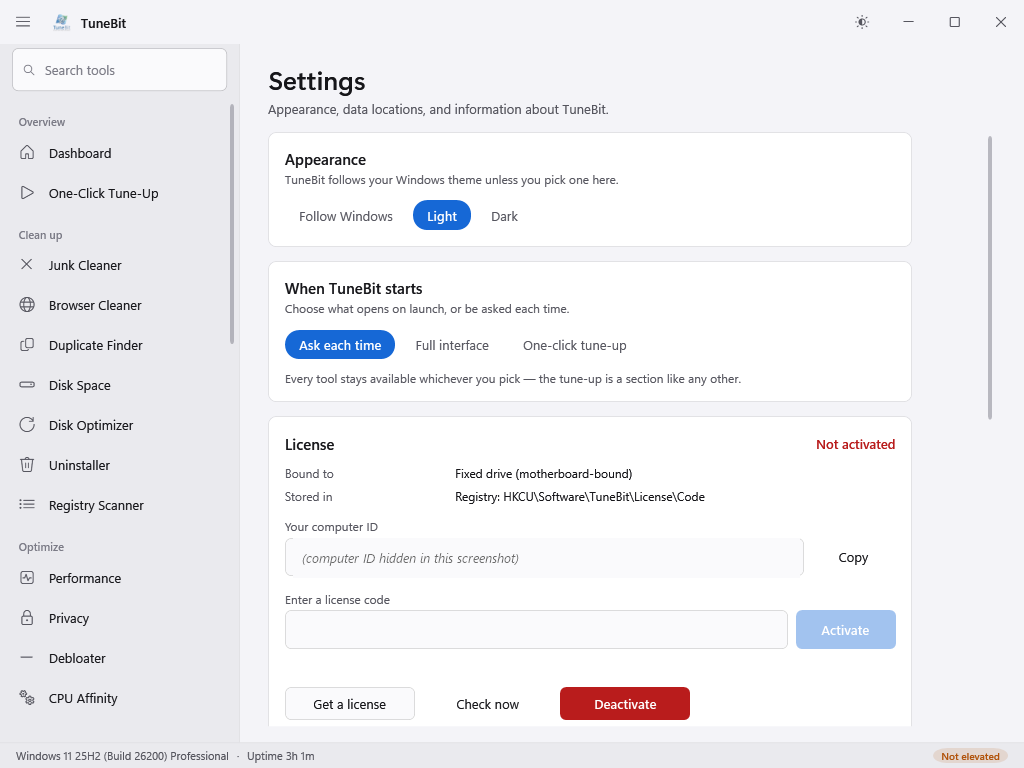
- In TuneBit, open Settings from the list down the left-hand side, then scroll down to the panel headed License. The same Copy button for your computer ID is here.
- The box marked Enter a license code is where the code gets pasted — click in it, then Ctrl and V.
- Press Activate beside it.
How to tell it worked
- The activation window closes by itself and TuneBit opens properly. That is the confirmation — there is no congratulations screen.
- In Settings → License, the red Not activated in the corner is replaced by your expiry date.
- Your dashboard lists the PC under Your devices.
You will not be asked for the code again on this PC. It is stored, and TuneBit re-checks it with us quietly every three days — there is nothing to renew until your year is up. You do not need to keep the code anywhere: it is always in your dashboard if you ever want it again.
If it will not take the code
TuneBit says why, in small text under the box. Here is each message in plain words, and what to do.
“License code is malformed. Please copy the entire code.”
Only part of the code arrived. This is far and away the most common one, and it means the code was selected by hand and the end of it was missed. Nothing is wrong with your licence.
Clear the box completely — click in it, hold Ctrl and press A to select everything in it, then press Delete. Now go back to the website and use the Copy code button rather than selecting the code yourself, and paste again.
“This license was issued for different hardware.”
The code is real, but it belongs to a different computer — usually another PC of yours, or the code you were sent first when you have since bought more. A code is sealed to one machine and cannot be moved between them.
Follow Route 2 on this PC to get a code made for it. If this is a machine you have replaced, release the old one’s seat in your dashboard first to free it up.
“License code signature is invalid.” or “License code is not valid.”
Something altered the code between our page and the box — usually a stray space or line break picked up on the way, or the code was pasted into a document and copied back out of it.
Empty the box and copy the code straight from your dashboard to TuneBit, without stopping anywhere in between.
“This license has expired.”
The year that code covered has run out. Renew from your dashboard — renewing re-issues the codes you already have rather than making you register everything again, so you copy the new one across exactly as before. Renewing early adds a year to what is left rather than throwing it away.
“License has been deactivated on the server.”
That code was released — either you freed its seat in the dashboard to use it on a different machine, or the order behind it was refunded. Register this PC again from your dashboard for a fresh code. If you were not expecting this, open a ticket and we will look at the account.
“Server unreachable; cannot verify license.”
This PC cannot reach us at the moment, so we cannot confirm the code has not been cancelled. Check the machine is online and try again. If you are fixing a broken network connection with TuneBit — which is a fair thing to be doing — do that first and activate afterwards; Skip for now will let you in for three days in the meantime.
Nothing pastes into the box at all
Two things cause this. Either you have not clicked inside the box first — do that, and check for the blinking line — or nothing was actually copied. Go back to the website and watch for the code block turning green when you press Copy code. If it does not turn green, the copy did not happen and there is nothing to paste.
Restarting the PC also empties the clipboard, so a code copied before a restart is gone. Copy it again from your dashboard.
The Activate button is grey and will not press
That is the button telling you the box above it is still empty. It switches on the moment anything is in the License code box. Paste the code first.
I have lost my code / I never got one
Nothing is lost. Every code you have ever been issued is in your dashboard under Your devices, and you can copy it as many times as you like. If the dashboard shows no licence at all, the payment may not have completed — tell us and we will check.
Things that are not worth trying
- Typing the code out by hand. It is 450 characters and it will not come out right.
- Retyping bits of a code that was refused — copy the whole thing again instead.
- Using a code from another PC. Codes are made for one machine each.
- Buying a second licence because the first will not activate. It almost certainly will; ask us first and we will sort it.
Still stuck? That is what we are here for.
Tell us what the message under the box says and we will take it from there. There is no charge for help with activation, and no queue to sit in.